

Prerequisites
Before you can configure and use Gemini with Connect AI, you must first connect a data source to your Connect AI account. See Sources for more information. Generate an OAuth JWT bearer token. Copy this down, as it acts as your password during authentication. You need Python >= 3.10 to use the Gemini tools.Connect through the Gemini Command Line Interface
After you install Gemini, do the following:1
Go to your user directory
%USERPROFILE% and create a .gemini folder.2
Within the folder, create a file named
settings.json.3
Copy and paste the following into the
settings.json file. "Authorization" should be set to "Bearer OAUTH_JWT_TOKEN". This is the OAuth JWT token from the prerequisites.4
In the terminal, type:You may need to give Google authorization to access your account.
5
The Gemini screen appears as follows: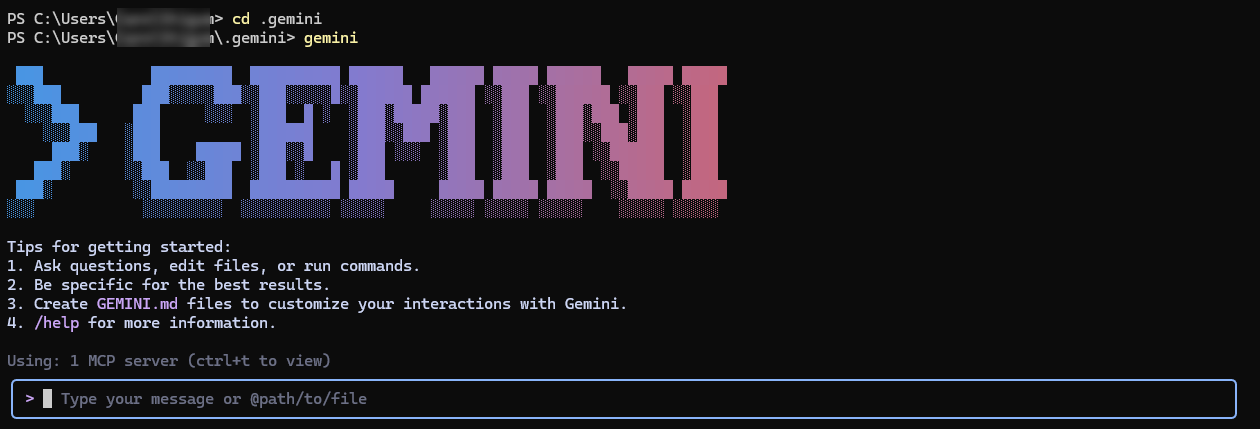
6
Enter a prompt in the prompt box to ask Gemini a question. Gemini uses the Connect AI tools such as
getCatalogs, getSchemas, and getTables to retrieve data from connected data sources.7
Gemini returns a response to your prompt.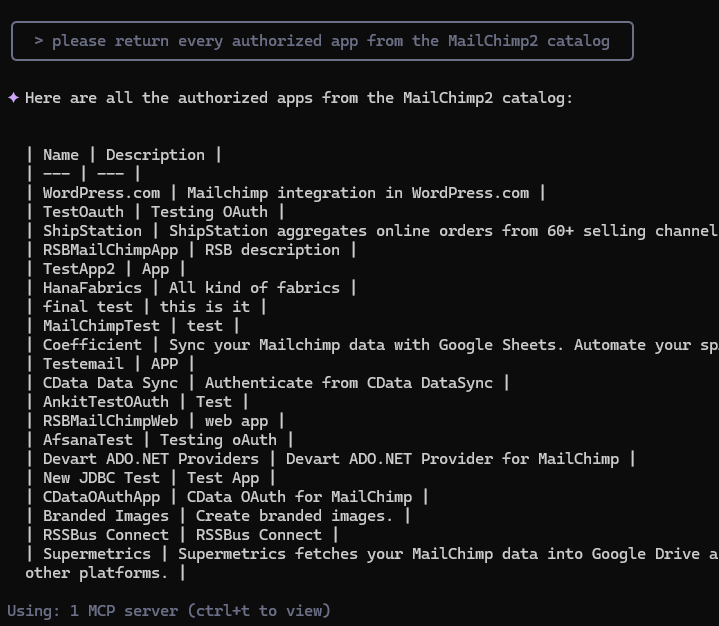
Connect through the Google ADK
1
Download the folder adk-mcp-client and unzip the folder.
2
Rename
.env example to .env.3
In the
.env file, remove MCP_USERNAME and MCP_PASSWORD. You are using the OAuth JWT token from the prerequisites to authenticate.4
Run the following command in your terminal:
5
Run the following command. This starts the ADK at port 5000 on your local machine:
6
In your web browser, open 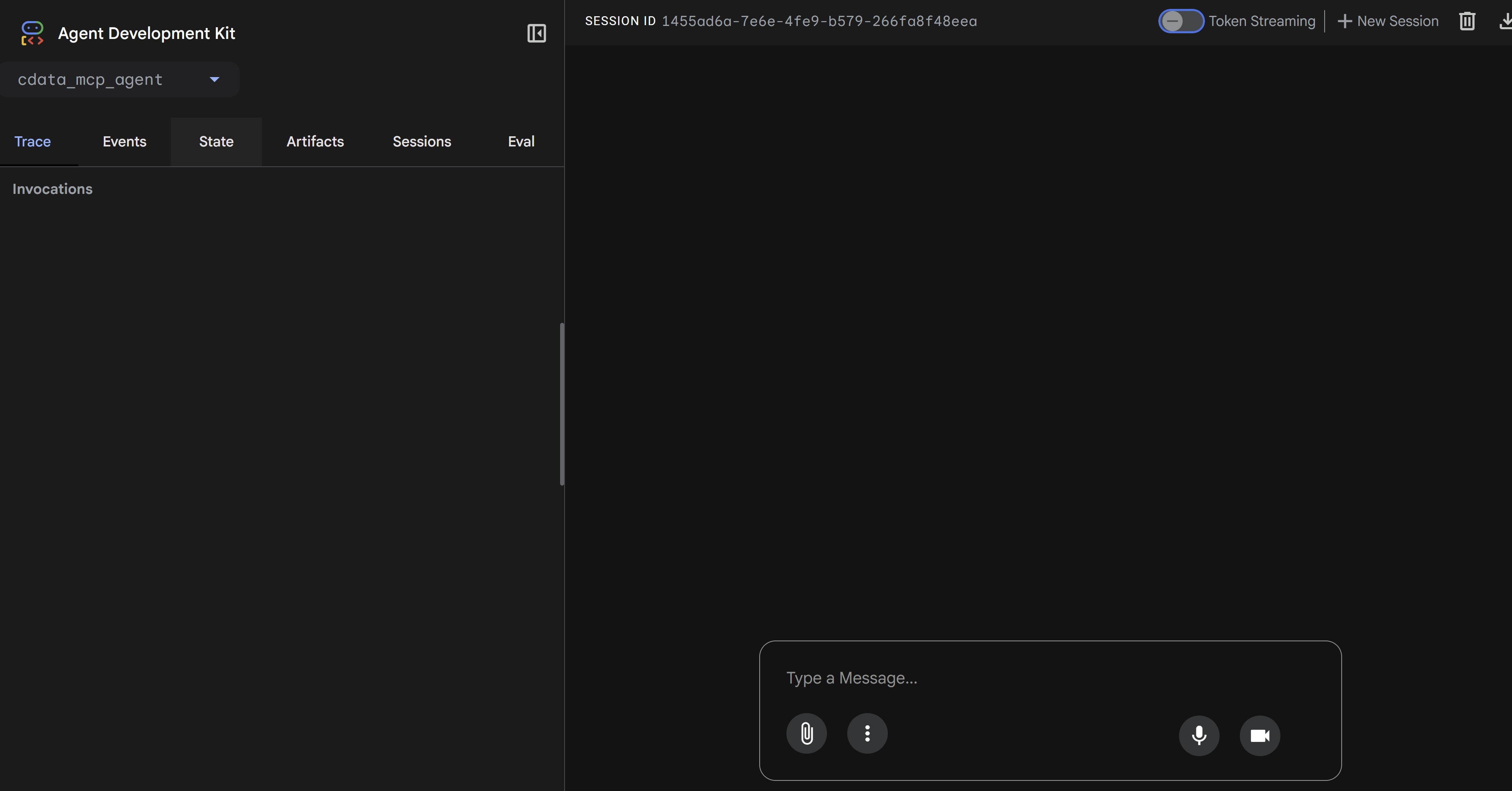
127.0.0.1:5000. The application looks like the following:7
Enter a prompt in the Type a Message box. Gemini uses the Connect AI tools such as 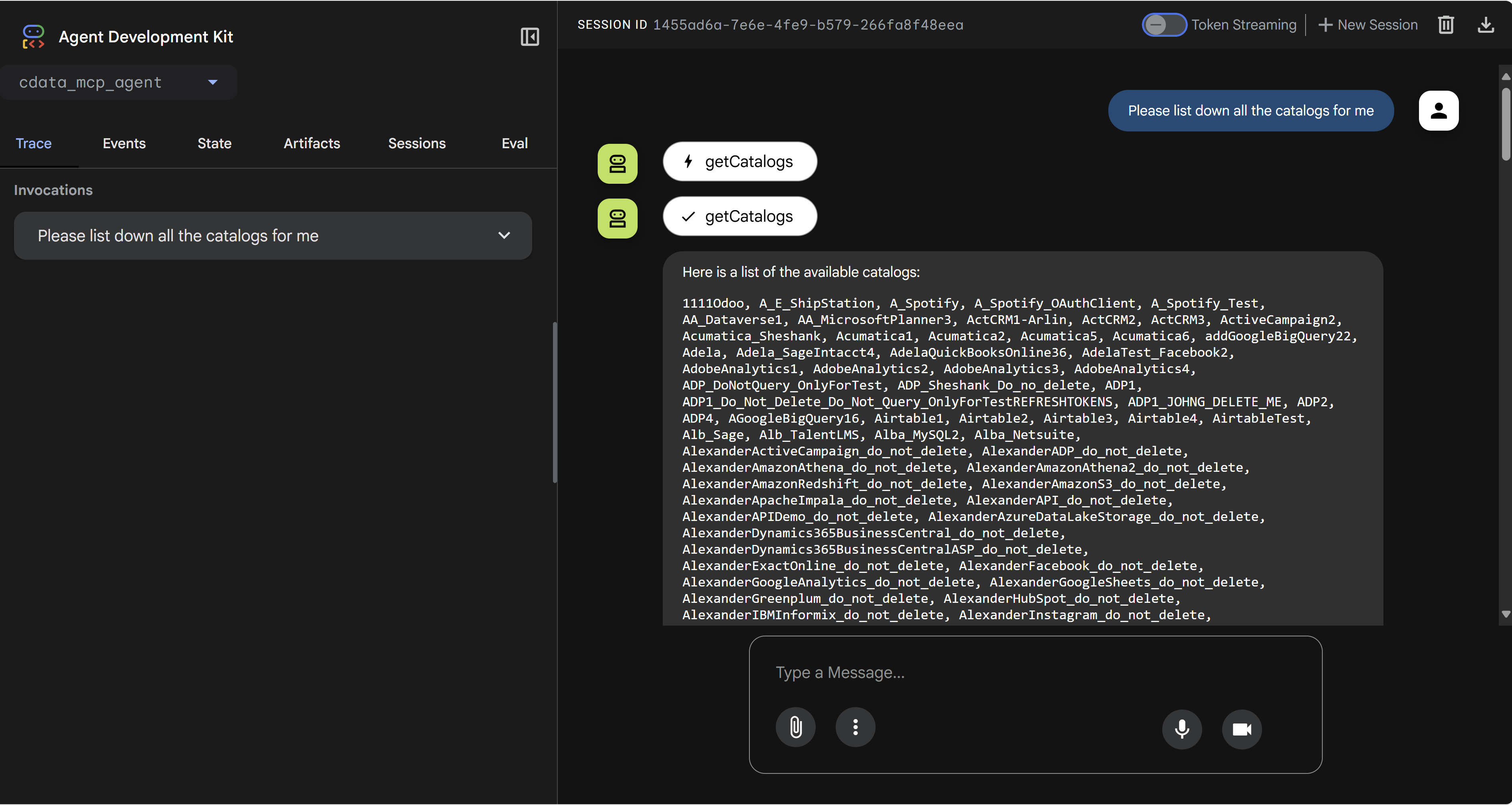
getCatalogs, getSchemas, and getTables to retrieve data from connected data sources.