

Prerequisites
Before you can configure and use SAS Viya with Connect AI, you must first connect a data source to your Connect AI account. See Sources for more information. You must also generate a Personal Access Token (PAT) on the Settings page. Copy this down, as it acts as your password during authentication.Connect to Connect AI
To establish a connection from SAS Viya to Connect AI through the JDBC driver, follow these steps.1
Download and install the Connect AI JDBC driver.a. Open the Integrations page of Connect AI.b. In the Dev Tools section, click JDBC.c. Download and run the setup file.d. When the installation is complete, the JAR file can be found in the installation directory.
2
Log in to SAS Viya.
3
Click on the navigation button on the upper left.
4
Click Develop Code and Flows.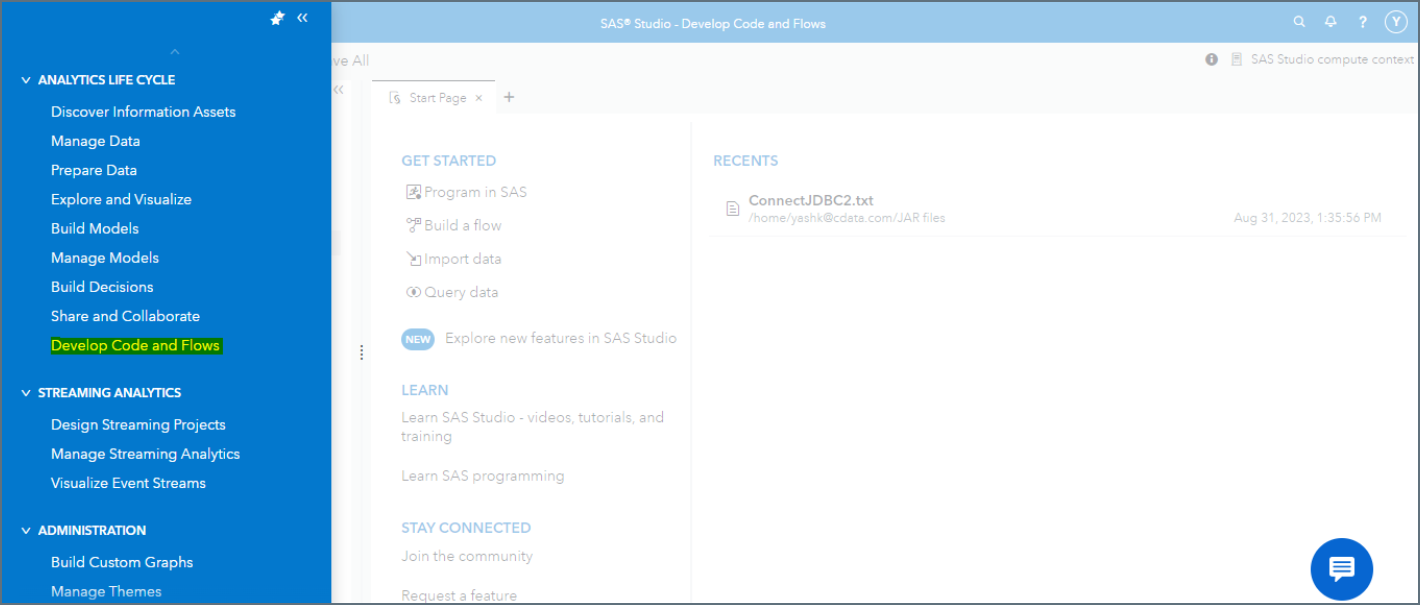
5
Upload the Connect AI JDBC JAR file.
- Right click on a directory.
- Click on Upload Files.
- Choose the Connect AI JDBC JAR file.
6
Place the JAR file of the Connect AI JDBC driver in any directory and note its file path.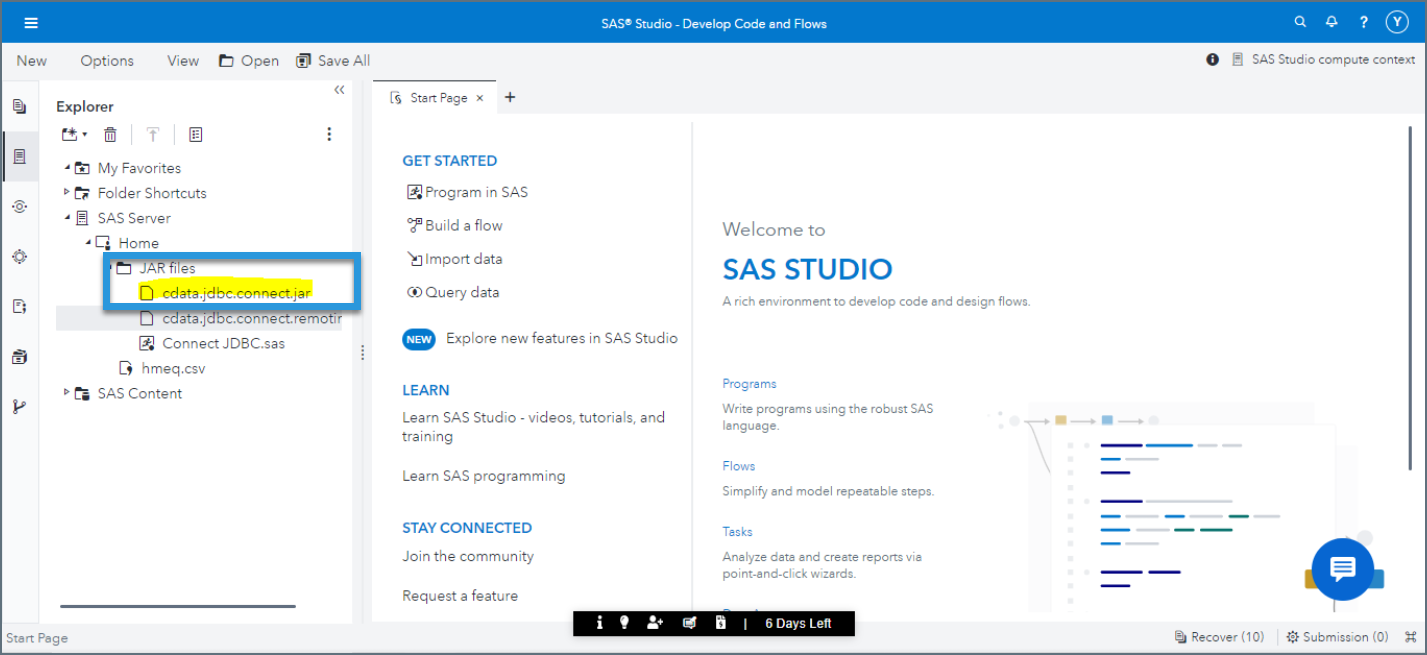
7
Click on the Libraries icon in the left vertical navigation bar.
8
Click on the connection symbol in the top left under Libraries to create a new library for the JDBC connection.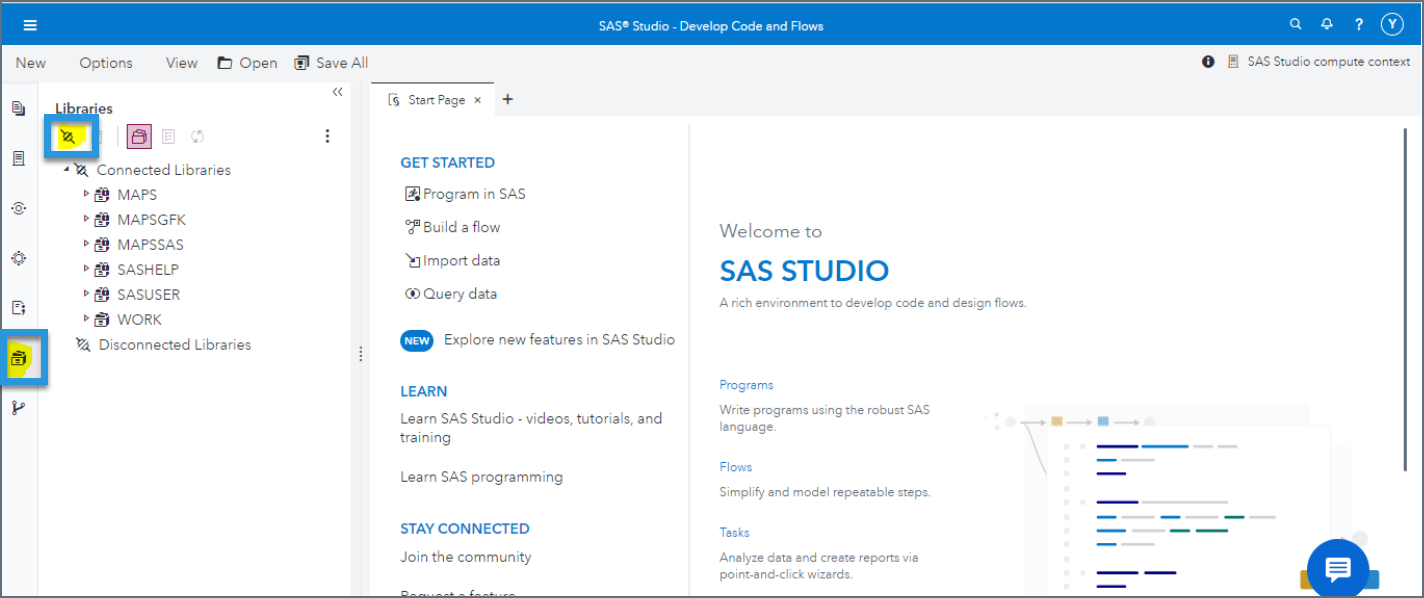
9
Enter the library connection settings.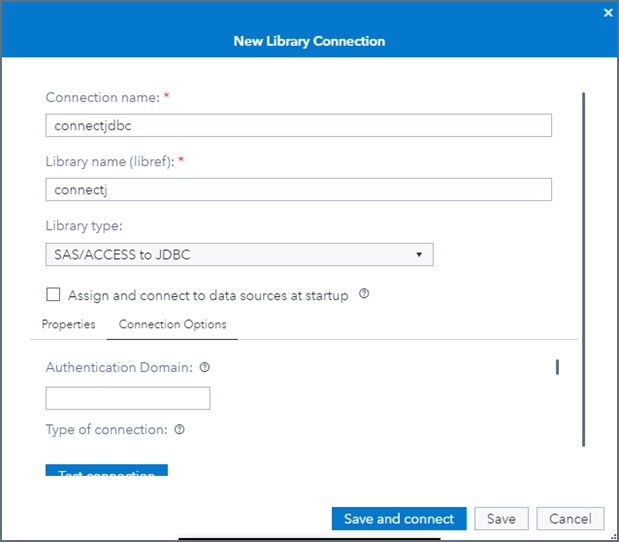
- Connection name—enter a name for your connection
- Library name (libref)—enter a reference for your library
- Library type—choose SAS/ACCESS to JDBC
10
Click the Properties tab and set Library attributes to READONLY.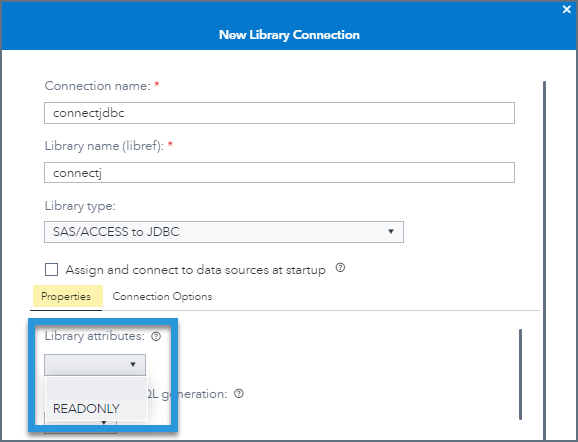
11
Click the Connection Options tab and enter the following details.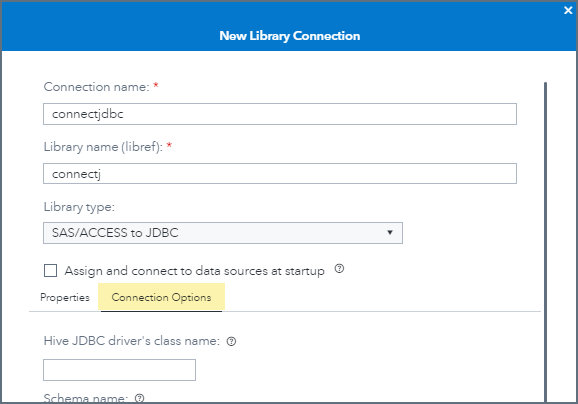
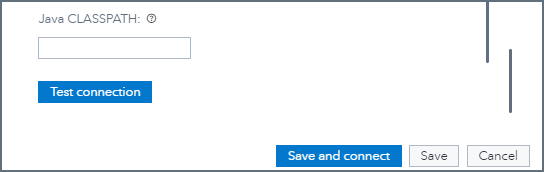
- Hive JDBC driver’s class name—enter cdata.jdbc.connect.ConnectDriver
- Java CLASSPATH—enter the file path to the JAR driver file
12
Click on Test connection. If it succeeds, click Save and connect.
13
Click the ”+” to add a new tab and select SAS program.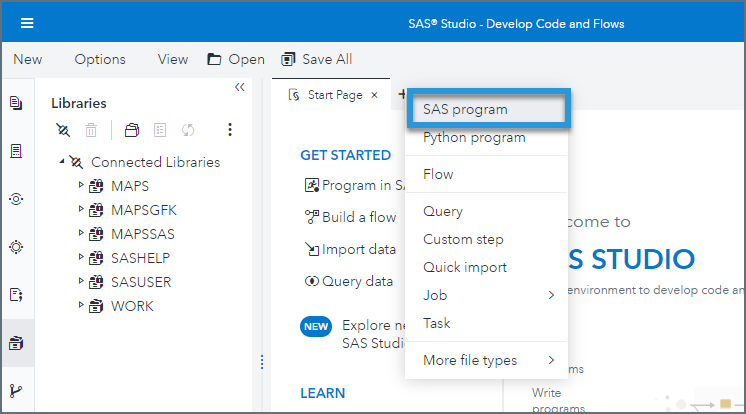
14
Fill in the code block below with your setup parameters.
- Libref—enter the library reference you defined in Step 9.
- ClassPath—enter the file path to the JAR driver file.
- Username—enter your Connect AI username. This is displayed in the top-right corner of the Connect AI interface. For example, test@cdata.com.
- DefaultCatalog—enter the connection configured in Connect AI that you want to query.
- Password—enter the PAT you generated on the Settings page.
15
Click Run. You can see the data load from Connect AI into SAS Viya.