The OData method of connecting is simpler and faster than the JDBC method.
Prerequisites
Before you can configure and use Crystal Reports with Connect AI through either method, you must first connect a data source to your Connect AI account. See Sources for more information. You must also generate a Personal Access Token (PAT) on the Settings page. Copy this down, as it acts as your password during authentication. For OData connectivity only: Create a Workspace. Later, you will use the OData Service URL on that page (https://cloud.cdata.com/api/odata/{workspace\_name}) with the relevant workspace name to establish the connection.Connect to Connect AI via OData
To establish a connection from Crystal Reports to Connect AI via OData, follow these steps.1
If necessary, download and install Crystal Reports from the SAP website.
2
In Crystal Reports, select File > New > Standard Report.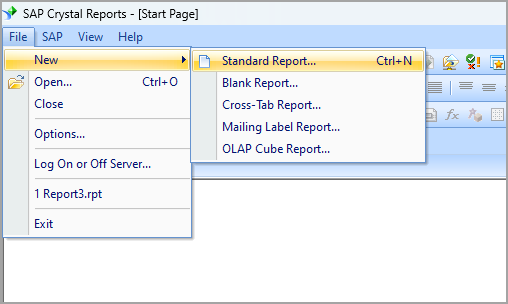
3
In the Standard Report Creation Wizard, select OData as your data source.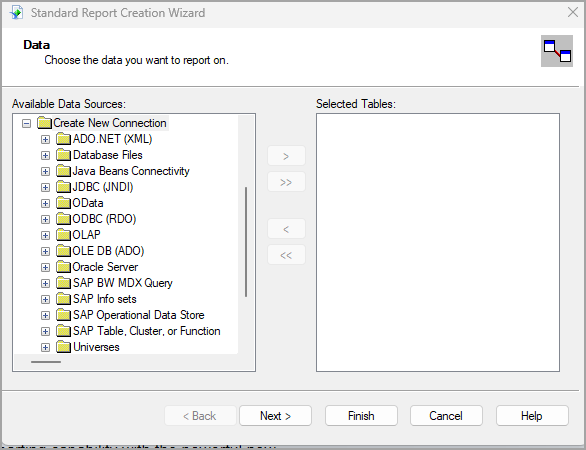
4
In the OData dialog, enter the following information: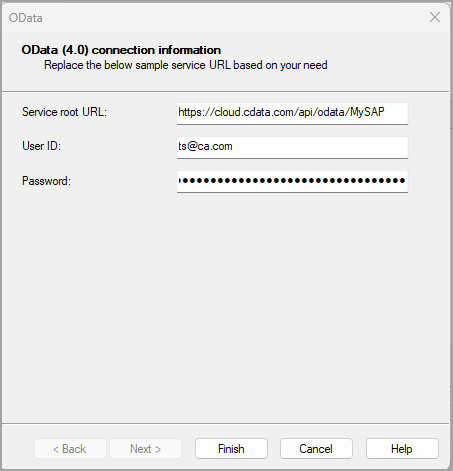
- Service root URL–https://cloud.cdata.com/api/odata/{workspace\_name}
- User ID–enter your Connect AI username. This is displayed in the top-right corner of the Connect AI interface. For example, test@cdata.com.
- Password–enter the PAT you generated on the Settings page.
5
The tables in the selected workspace now appear as an available data source under OData.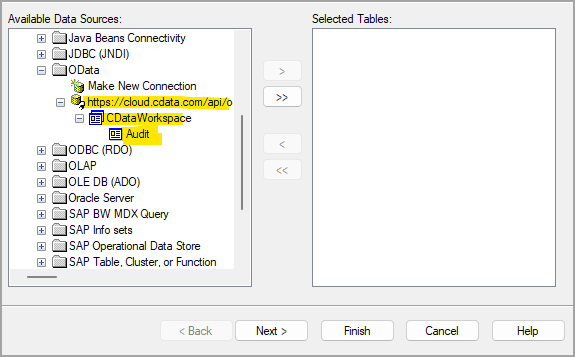
6
Select the tables and columns for your report.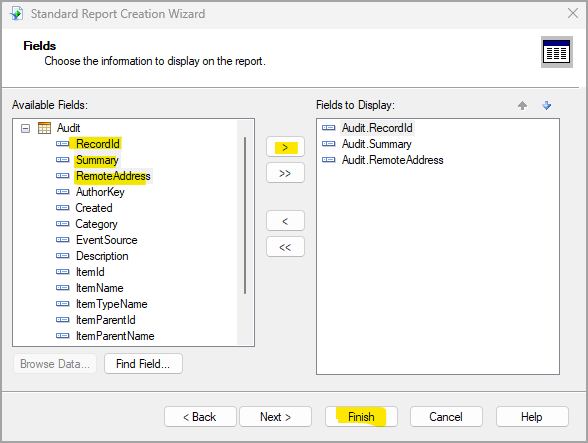
7
Click Finish to generate the report.
Connect to Connect AI via JDBC Driver
To establish a connection from Crystal Reports to Connect AI through the JDBC driver, follow these steps.1
If necessary, download and install Crystal Reports from the SAP website.
2
Download and install the Connect AI JDBC driver.a. Open the Integrations page of Connect AI.b. In the Dev Tools section, click JDBC.c. Download and run the setup file.d. When the installation is complete, locate the JDBC Connect JAR file in the JDBC driver’s installation directory, for example,
C:\Program Files\CData\JDBC Driver for CData Connect\lib.e. Copy the JDBC Connect JAR file.3
Find the installation directory for Crystal Reports, for example,
C:\Program Files (x86)\SAP BusinessObjects\SAP BusinessObjects Enterprise XI 4.0\java\lib.4
Paste the JDBC Connect JAR file into the Crystal Reports installation directory.
5
Go to the parent 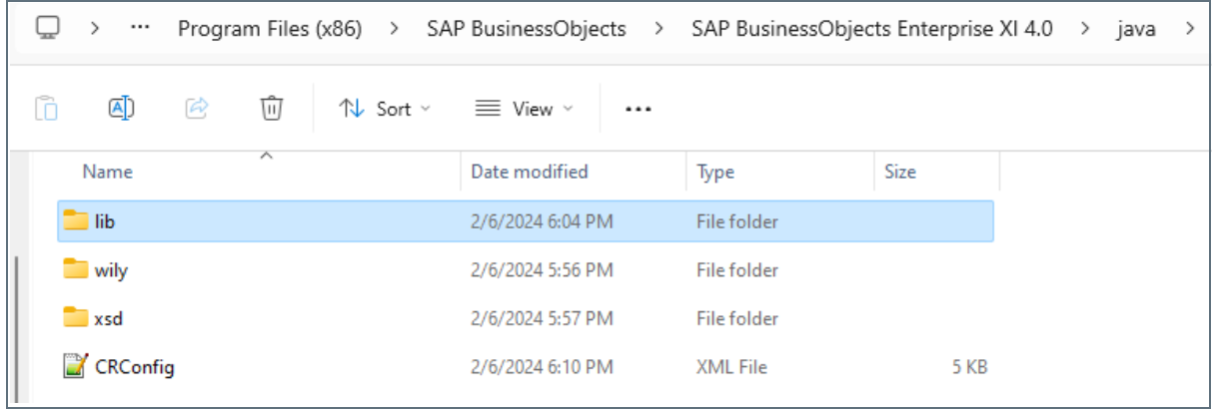
java folder (for example, C:\Program Files (x86)\SAP BusinessObjects\SAP BusinessObjects Enterprise XI 4.0\java). This folder should contain a CRConfig file.6
Open
CRConfig in a text editor.7
Add the path to the JDBC Connect JAR file in the 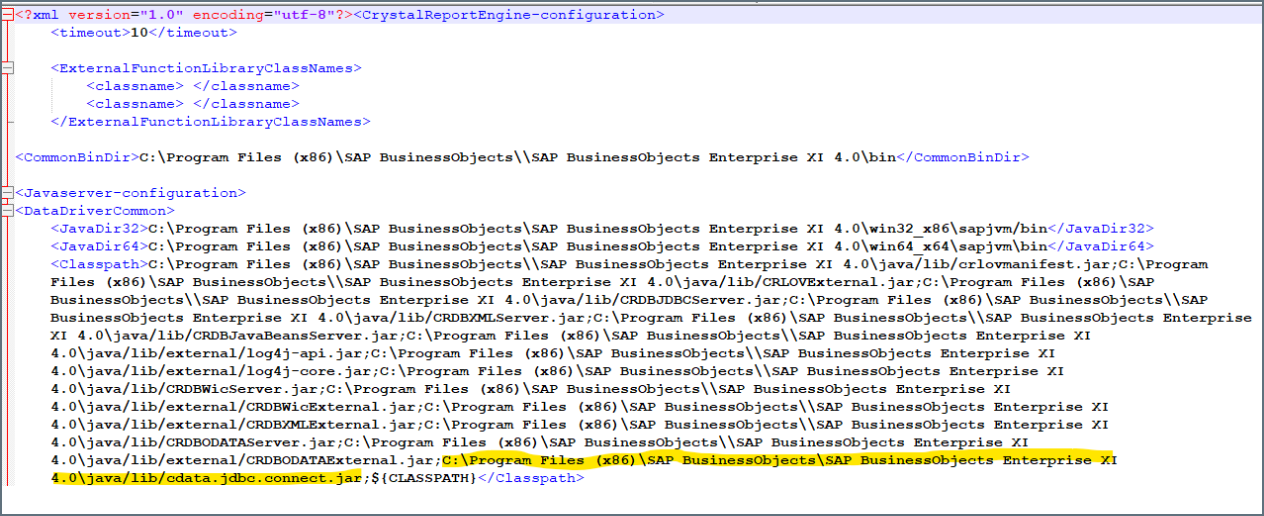
<Classpath> of the CRConfig file, for example, C:\Program Files (x86)\SAP BusinessObjects\SAP BusinessObjects Enterprise XI 4.0\java\lib.8
Log in to Crystal Reports and start a blank report.
9
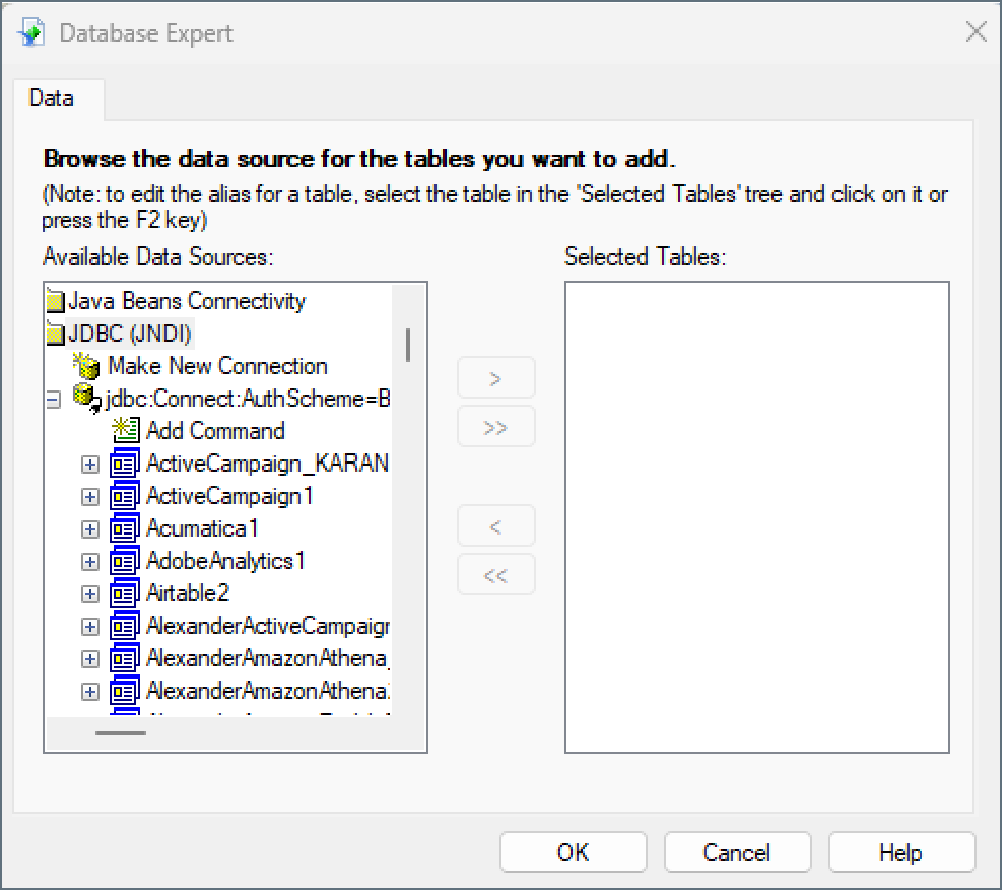
In the Database Expert dialog, click Create New Connection.
10
Select the JDBC data source and the tables you want to add. Click OK.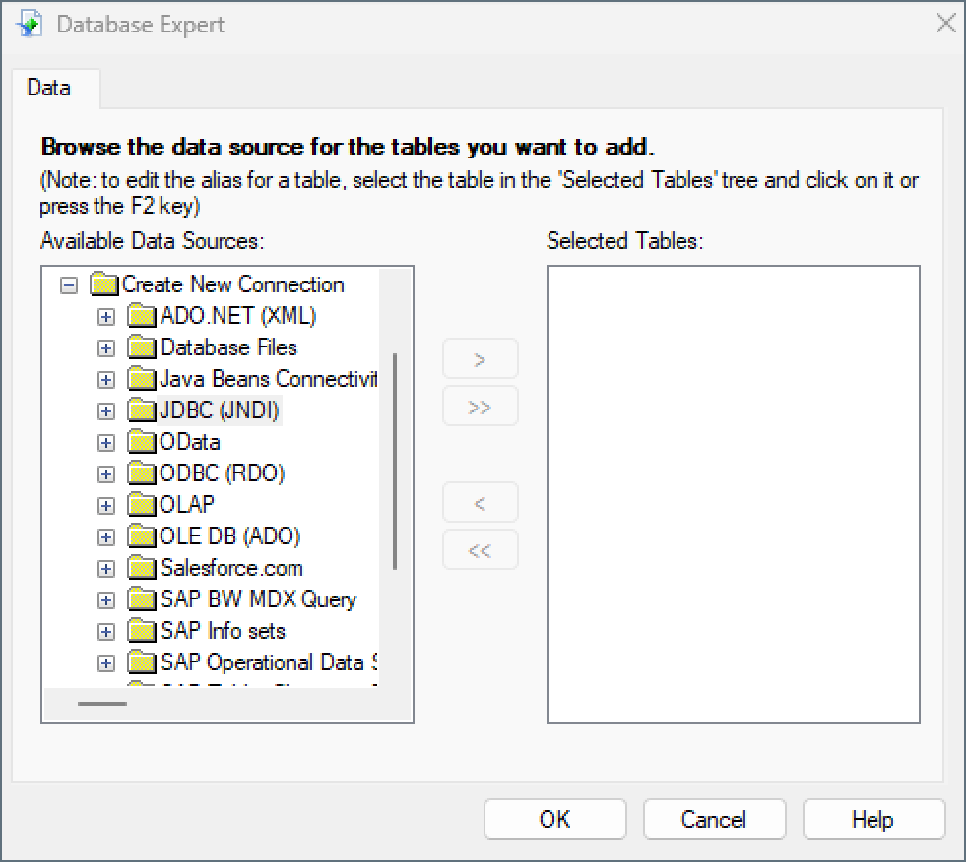
11
In the Connection dialog, enter the Connection URL and Database Classname.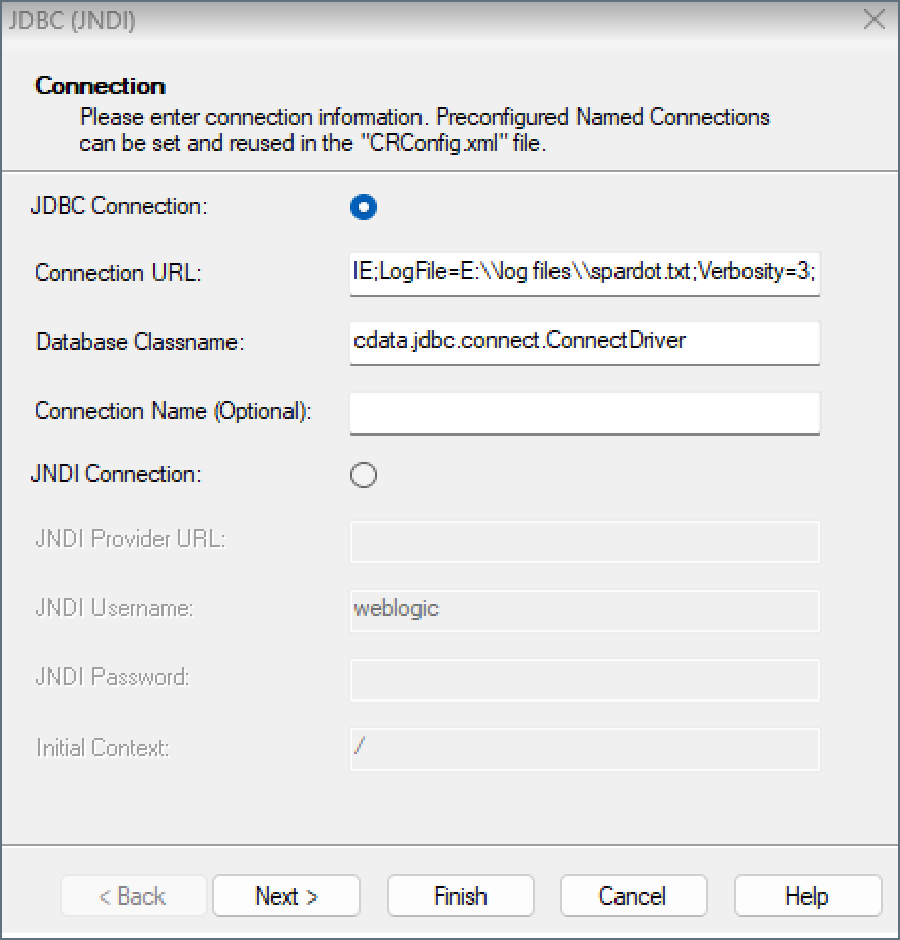
12
Click Finish. The Database Expert dialog displays all available connections.