

Prerequisites
Before you connect Metabase to Connect AI, you must perform the following prerequisites. In Connect AI:- Connect a data source to your Connect AI account. See Sources for more information.
- Generate a Personal Access Token (PAT) on the Settings page. Copy this down, as it acts as your password during authentication.
Download and Install the Metabase JAR File
2
Create a new directory and move
metabase.jar to the new directory.3
In the new directory, run the JAR file:Metabase logs its progress in the terminal as it starts up. Wait until you see the message
Metabase Initialization Complete before you start Metabase.4
Visit 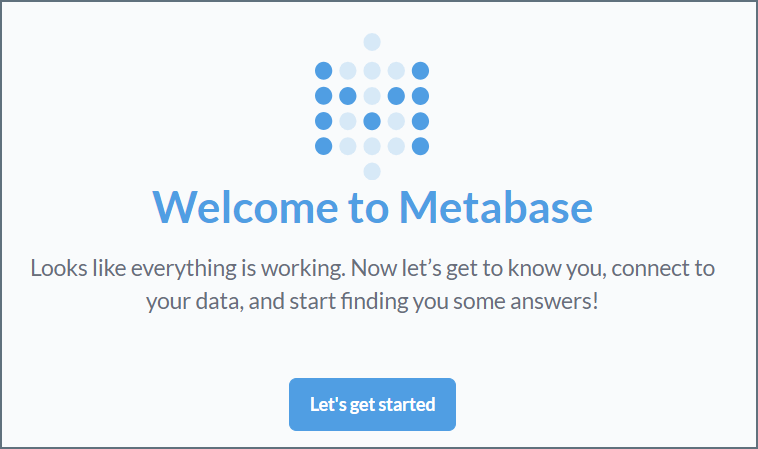
http://localhost:3000/setup to start Metabase and complete your setup.5
Follow the prompts to set up an admin account.
Connect to Connect AI
Step 4 of the Metabase setup is adding your data. To connect to Connect AI, do the following:1
Click SQL Server.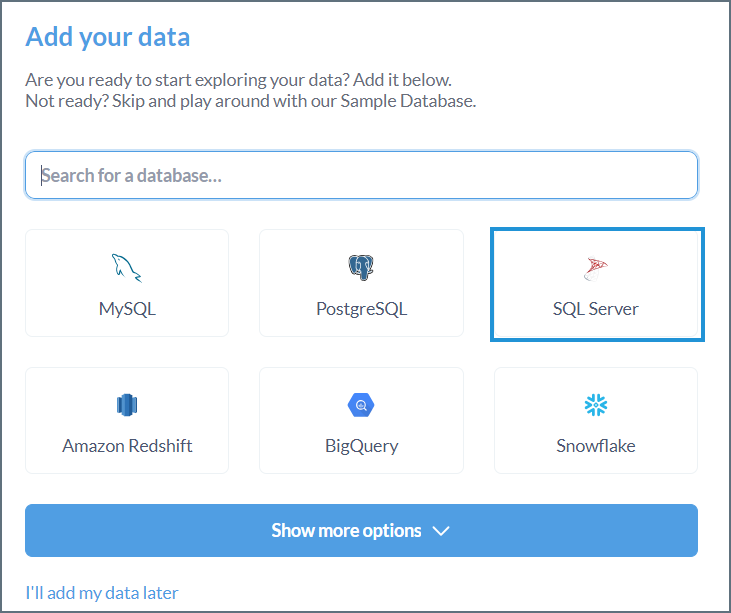
2
Enter the following information: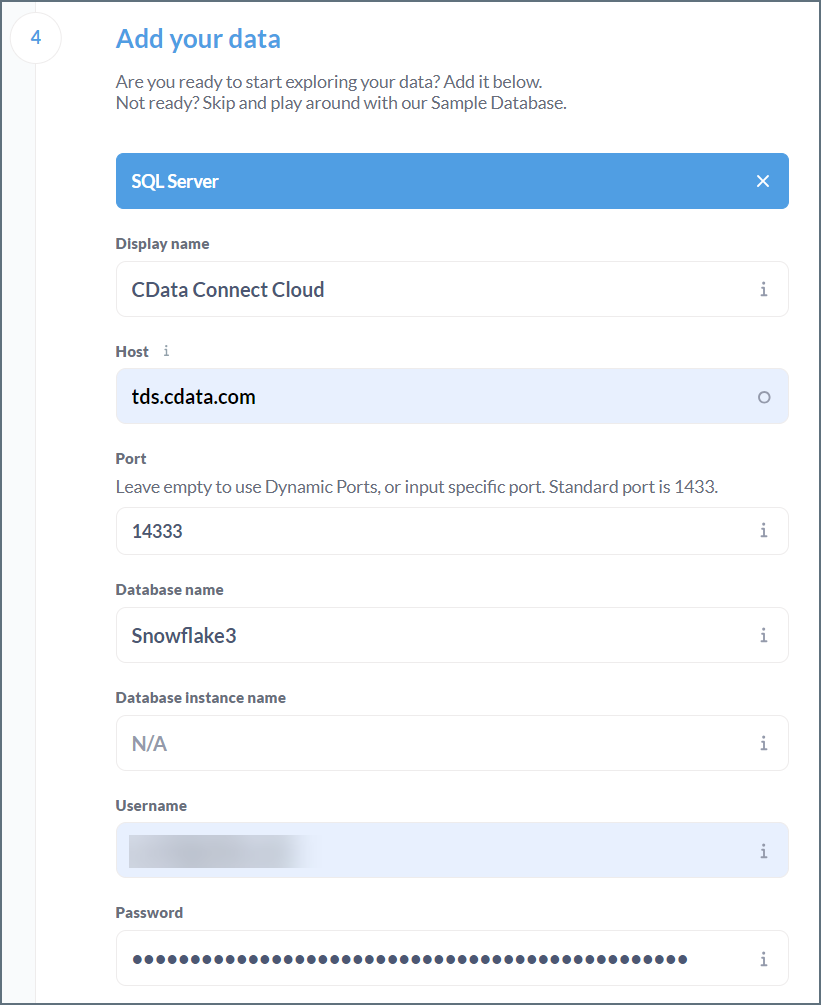
- Display name—the name of your data for display purposes.
- Host—tds.cdata.com
- Port—14333
- Database name—enter the Connection Name of the Connect AI data source you want to connect to (for example, Salesforce1).
- Database Instance name—N/A
- Username—enter your Connect AI username. This is displayed in the top-right corner of the Connect AI interface. For example, test@cdata.com.
- Password—enter the PAT you generated on the Settings page.
3
Click Next.
4
Click Take me to Metabase.
Query Your Data
1
In the Home screen, click New > SQL Query.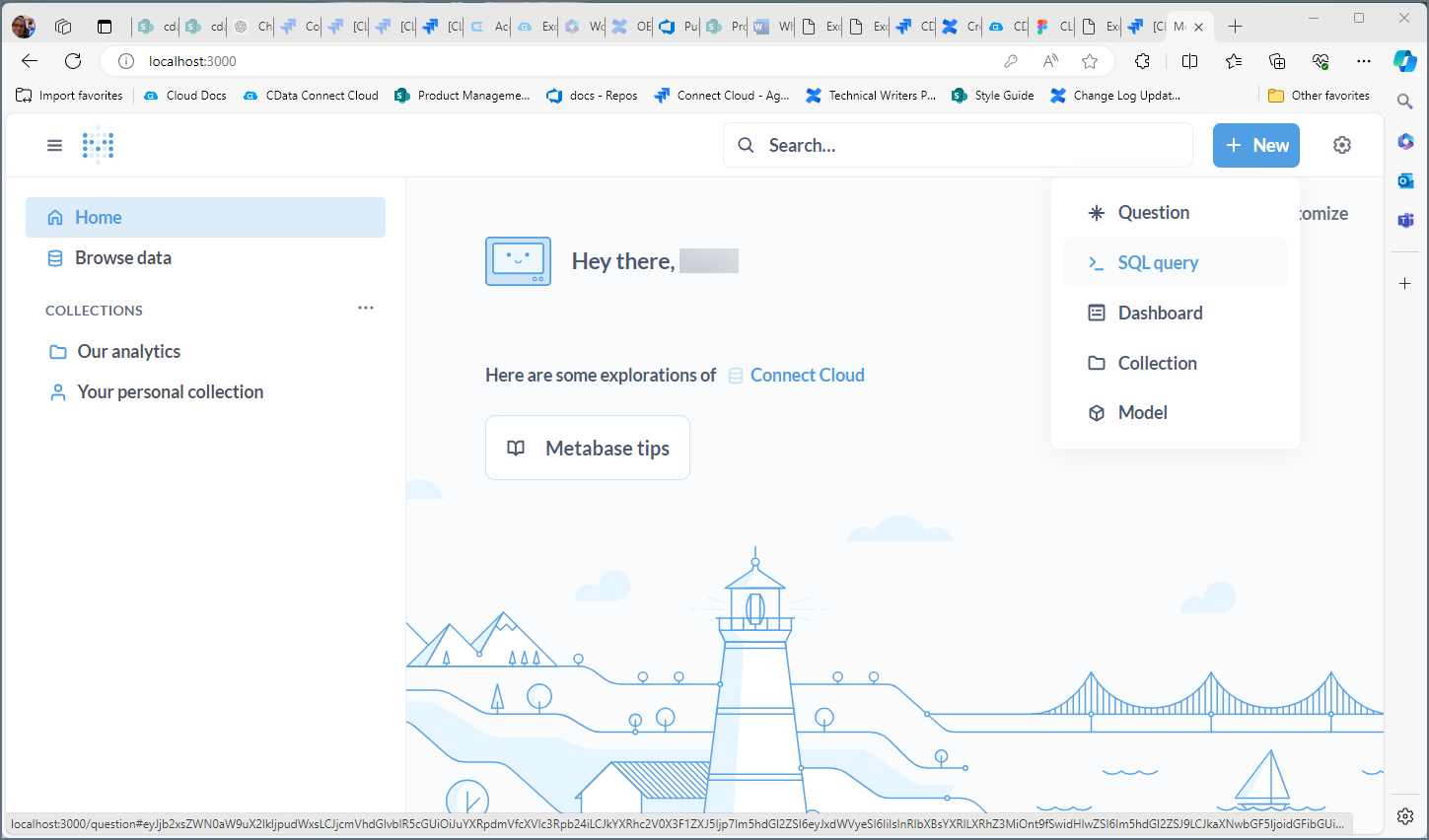
2
Select the database you just added.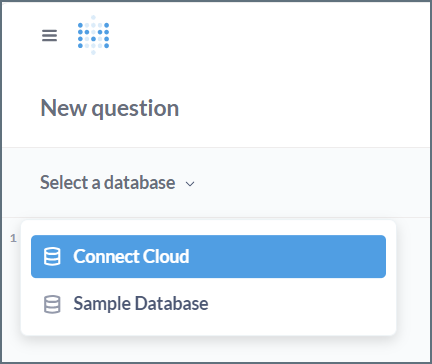
3
Create a SQL query for the data.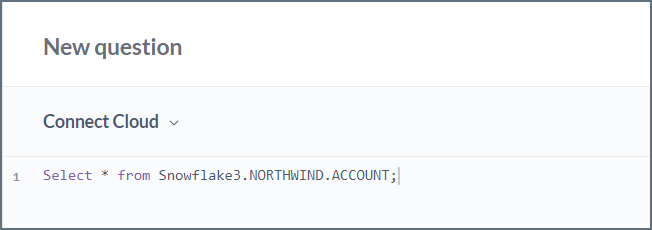
4
Click Run query to retrieve your data.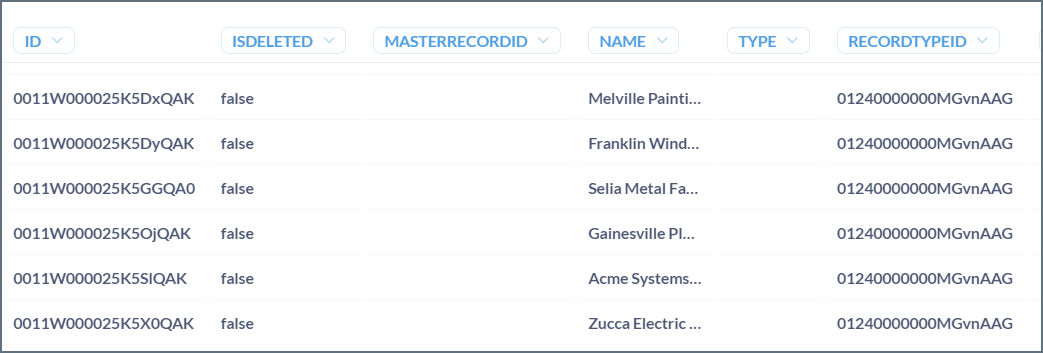
5
Click Save to save your query and add it to your collection.