


- Profile
- Account
- Access Tokens
- Billing

Profile
The Profile tab opens by default when you access Settings. This tab contains settings for the user that is currently logged in.
This feature is enabled for administrators only. Query users can contact their administrator to grant support access to their accounts.
Account
The Account tab provides access to account-wide settings and troubleshooting features.
Details
The Details section lists the following global account information:- Organization Name
- Country
Primary Contact Information
This section contains the following fields that define the account’s primary contact for invoices, announcements, and other communication:- First name
- Last name
- Phone Number
- Country
These fields can only be edited by administrators.
Delete Account
If you want to delete your Connect AI account and all of its data, click Contact Sales for assistance.Account deletion is permanent. If you delete your account, you need to create a new account if you want to use Connect AI in the future.
Access Tokens
Personal access tokens (PATs) are used when you connect to your data through REST API, the OData protocol, or Virtual SQL Server. You can create and manage your PATs on this tab.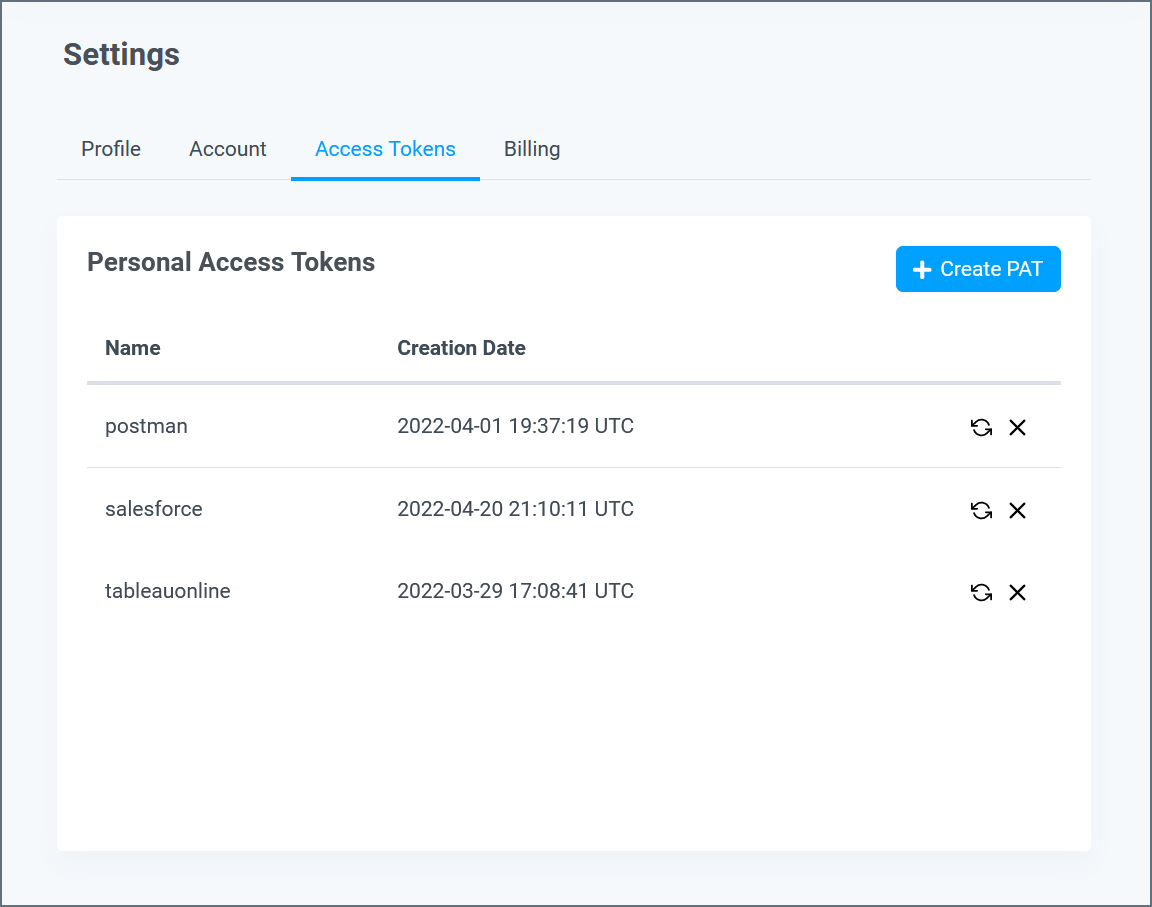
Create a PAT
Follow these steps to create a new PAT:1
Click Create PAT.
2
Enter a name for the PAT in the dialog that appears. It might be useful to enter a name that indicates its purpose.
3
Click Create and a new dialog appears.
4
Click the copy icon in that dialog to copy the PAT to your clipboard. The icon is to the right of the token field.

You cannot view the PAT again after you close this dialog.
5
Click OK to close the dialog.
Regenerate a PAT
If you need to regenerate a PAT, click the regeneration icon in the PAT list and follow the prompts that are displayed.
Regenerating a PAT revokes access for any applications that use the PAT. Therefore, you must enter the newly generated PAT in any such applications.
Delete a PAT
To delete a PAT that you no longer use, click the delete icon in the PAT list.
Deleting a PAT revokes access for any applications that use the PAT. Therefore, you must create a new PAT and enter it into those applications to restore this access.
Billing
The Billing tab provides information and controls for your account plan and usage.
- The Billing section displays your plan information and next billing date.
- CData Connect Spreadsheets users have a Compare Plans link to compare upgrade plans.
- Click Manage Payment Method to open your account with Stripe. You can manage your billing settings, such as your payment method and billing address. If your subscription has lapsed, you need to reactivate your plan to continue using Connect AI.
- To the right is the Update Plan section, with information on calling the Connect AI sales team, or you can email sales at sales@cdata.com.
- If you are on a free trial account, this section displays your trial information.
- The Your Plan Details section displays what is included in your current plan.