Prerequisites
Before you connect, you must first do the following:- Connect a data source to your Connect AI account. See Sources for more information.
- Generate a Personal Access Token (PAT) on the Settings page. Copy this down, as it acts as your password during authentication.
Connect to Connect AI
In order to connect from Apps Script to Connect AI via the Query API, you need the following information:- URL—https://cloud.cdata.com/api/query
- Username—enter your Connect AI username. This is displayed in the top-right corner of the Connect AI interface. For example, test@cdata.com.
- Password—enter the PAT you generated on the Settings page.
1
Log in to Apps Script (https://script.google.com).
2
Create a new Apps Script project.
3
Copy and paste the script below into the Apps Script project. This script connects your data source to the Query API and outputs the results to the Apps Script console.
Change the following in the script:
- Update
usernamewith your Connect AI username. - Update
passwordwith the PAT you generated in the prerequisites. - Update
querywith your database query.
4
Name and save your Apps Script project.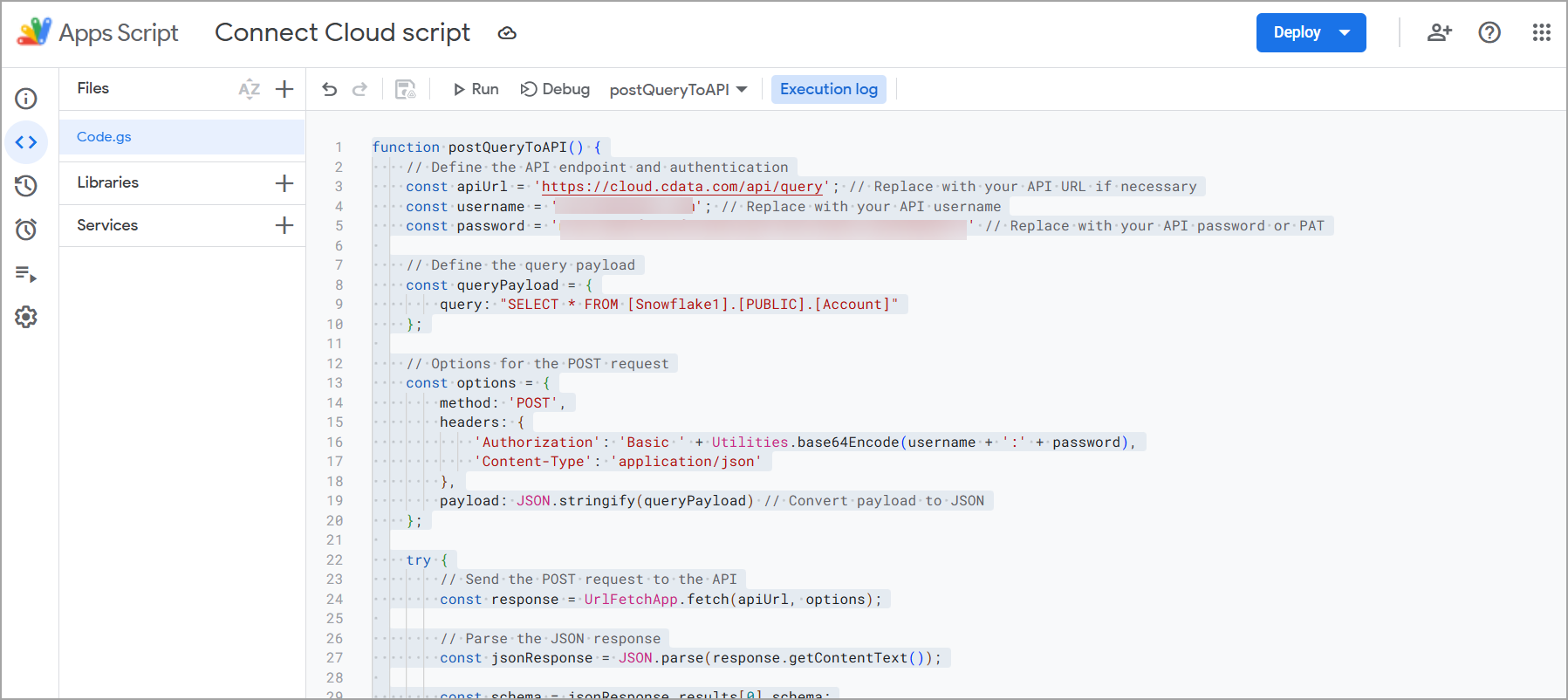
5
Run the script.
The first time you run the script, you need to authorize it to make external connections. Click Review Permissions and follow the prompts to grant the necessary permissions.
6
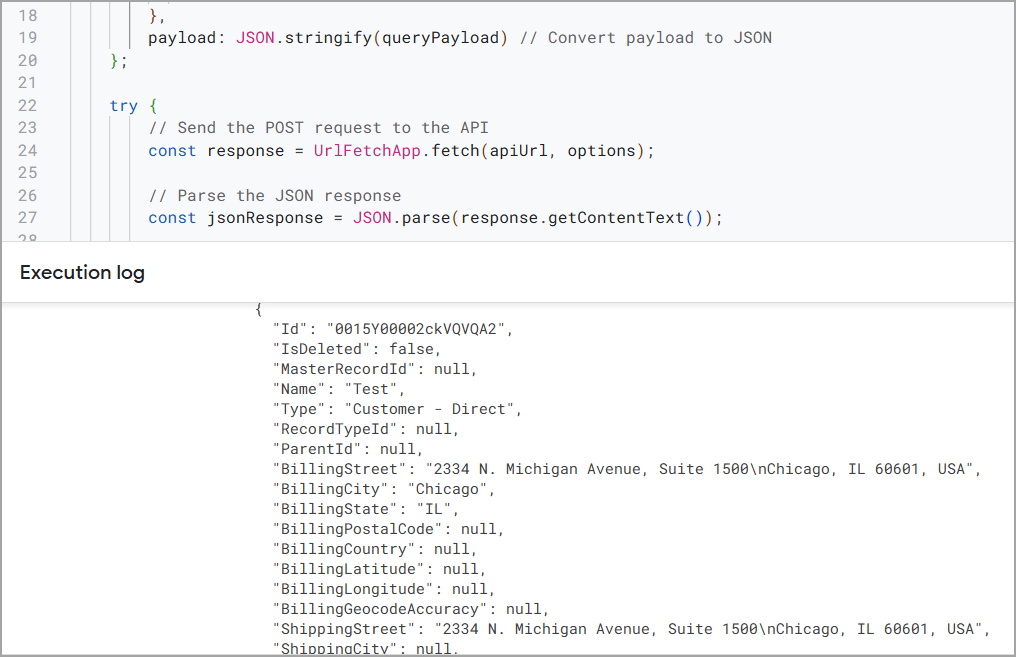
The Execution log displays the query output as a JSON object: