

Prerequisites
Before you connect, you must first do the following:- Connect a data source to your Connect AI account. See Sources for more information.
- Generate a Personal Access Token (PAT) on the Settings page. Copy this down, as it acts as your password during authentication.
Connect to Connect AI
To establish a connection from AppSheet to the Connect AI Virtual SQL Server API, follow these steps.1
Log in to AppSheet.
2
In the top navigation bar, select My account.
3
On the Sources tab, select New Data Source.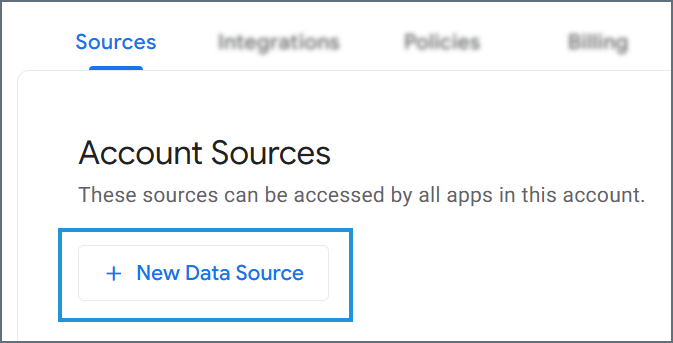
4
In the data source list, select Cloud Database.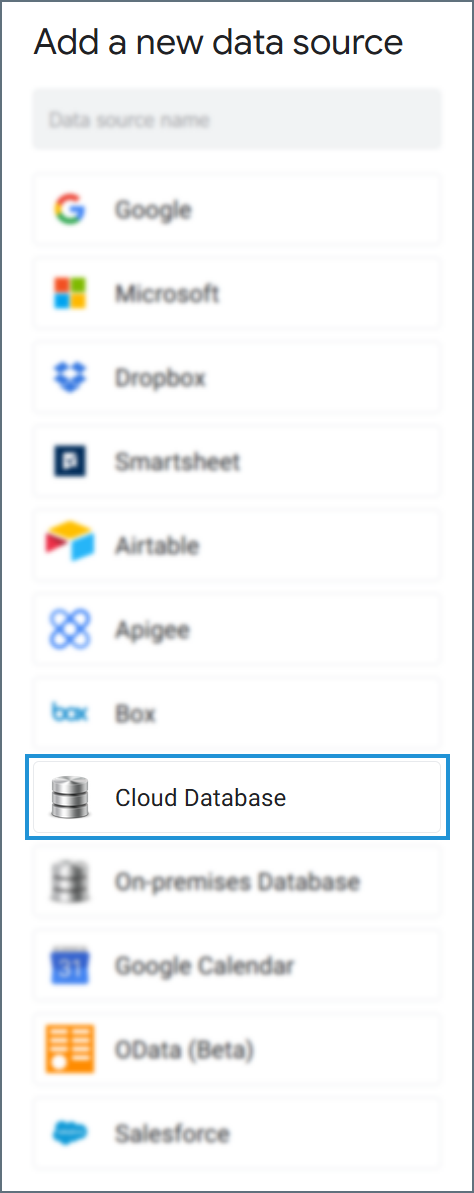
5
Enter the connection settings.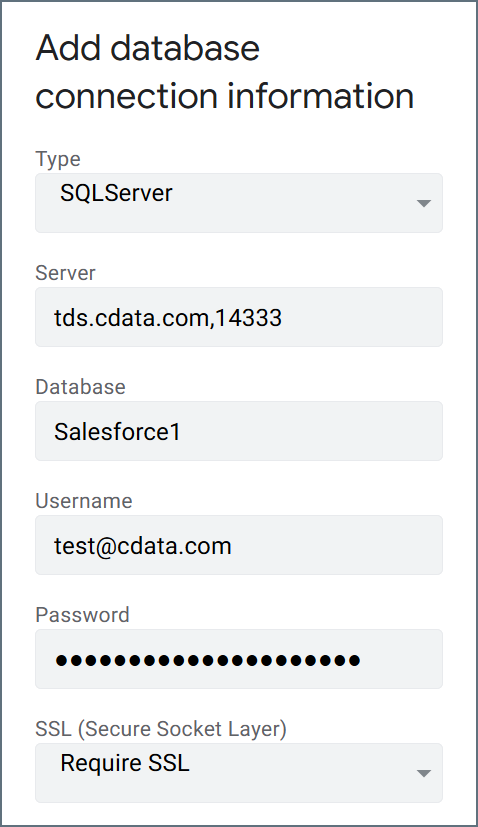
- Type—select SQLServer.
- Server—enter the Virtual SQL Server endpoint and port separated by a comma: tds.cdata.com,14333
- Database—enter the Connection Name of the Connect AI data source you want to connect to (for example, Salesforce1).
- Username—enter your Connect AI username. This is displayed in the top-right corner of the Connect AI interface. For example, test@cdata.com.
- Password—enter the PAT you generated on the Settings page.
- SSL—set to Require SSL.
6
Click Test to test your entered credentials. If you receive an error, check all fields and try again.
7
Click Authorize Access to create the connection.