

- BigQuery
- Databricks
- PostgreSQL
- Redshift
- Smartsheet
- Snowflake
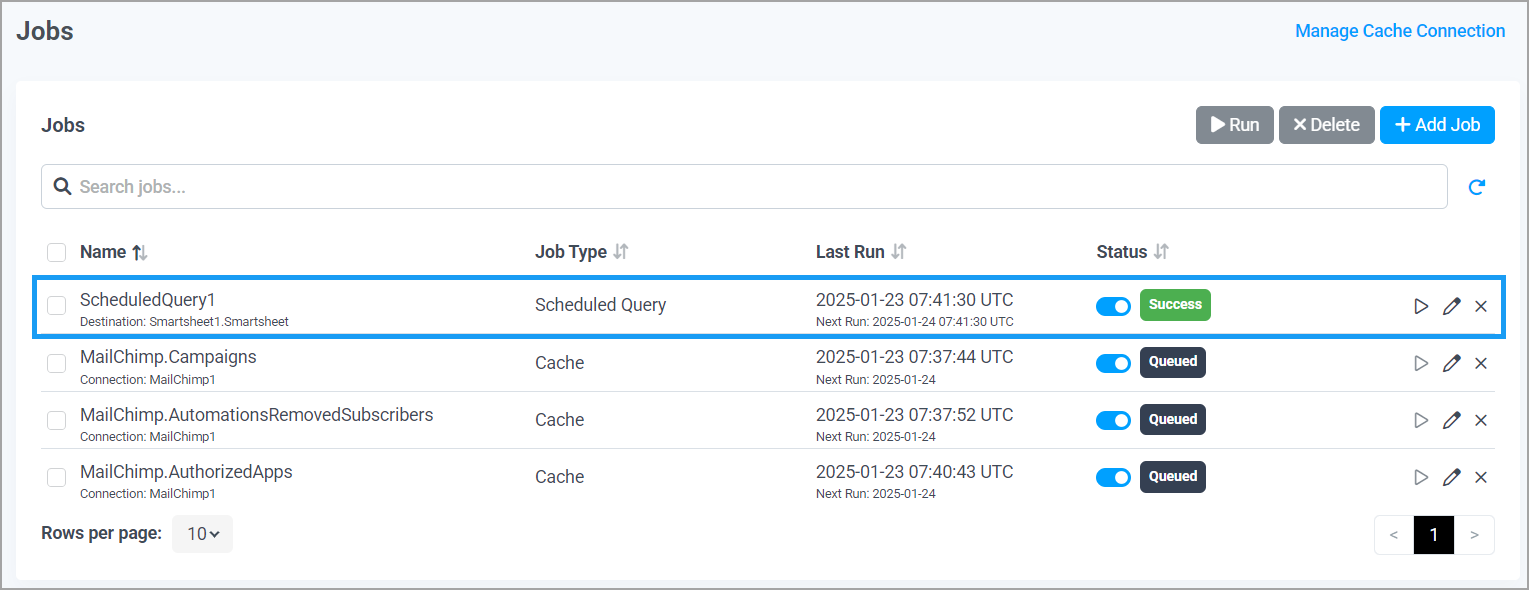
Configure Scheduled Queries
Before you can use the Schedule Queries feature, you need to add a destination connection, schema, and table for your scheduled query. The destination table contains the results of your scheduled query. If you haven’t already done so, add your destination connection in the Add Connection page. Note that the connection type for the destination must be one of the following: BigQuery, Databricks, PostgreSQL, Redshift, Smartsheet, or Snowflake. Go to Sources for details.Add a Scheduled Query Job
You can add a schedule query job in one of two ways: on the Jobs page or in the Data Explorer.On the Jobs Page
1
On the Jobs page, click +Add Job > Scheduled Query. This launches the Data Explorer.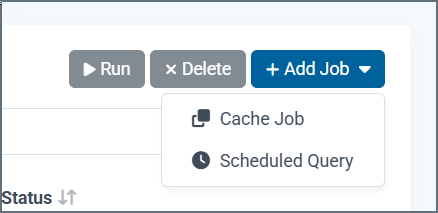
2
The Data Explorer opens a query containing the following message:
3
Now follow the instructions below for Data Explorer.
In the Data Explorer
1
In Data Explorer, use the Query Builder or SQL Editor to build your query. See Query Builder for detailed steps.
2
When you have finished creating and executing your query, click Save > Save as Scheduled Query.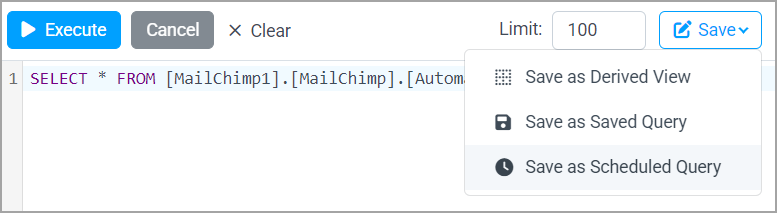
3
In Add Job, enter the Name for your scheduled query.
4
Set a schedule for your query in hours, days, weeks, or months. Then set a start date and time in UTC. The default date is today’s date.
5
Select whether to Overwrite or Append the current table in your destination connection. If the table exists, Overwrite deletes the current table and overwrites it with the new table. Append adds the latest query results to the current table.
6
Select a Destination Connection. Note that only connections of the type mentioned above (BigQuery, Databricks, PostgreSQL, Redshift, Smartsheet, and Snowflake) are available as a destination connection.
7
Select a Destination Schema if there is more than one schema. Otherwise, the default schema is used.
8
Enter the Destination Table name for table to be created.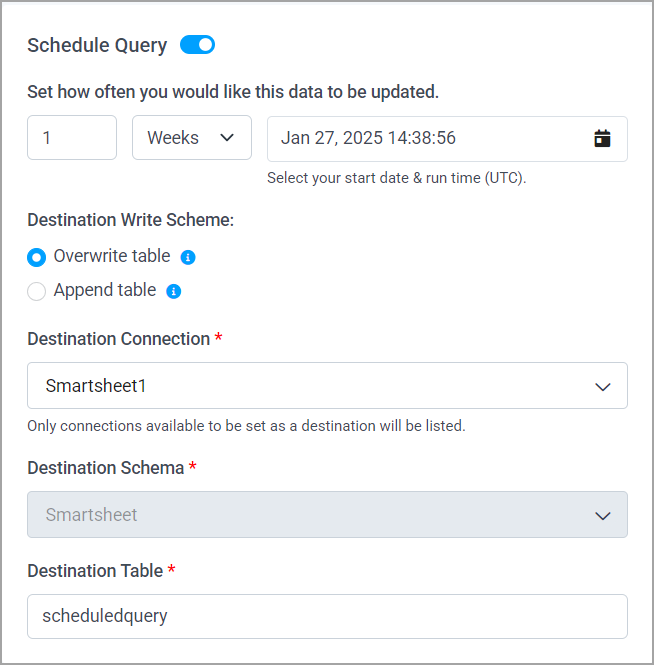
9
Click Save Changes. If the query is saved successfully, the Status of the scheduled query changes from Draft to Queued.
10
You can edit the SQL Code in Data Explorer, if necessary.
11
Click Run Now to run the scheduled query immediately.
12
The scheduled query now appears in the Jobs queue.
Edit a Scheduled Queries Job
You can modify or delete a scheduled query job at any time by clicking the edit or delete icons in the jobs queue. You can also run a job manually at any time by clicking Run Now.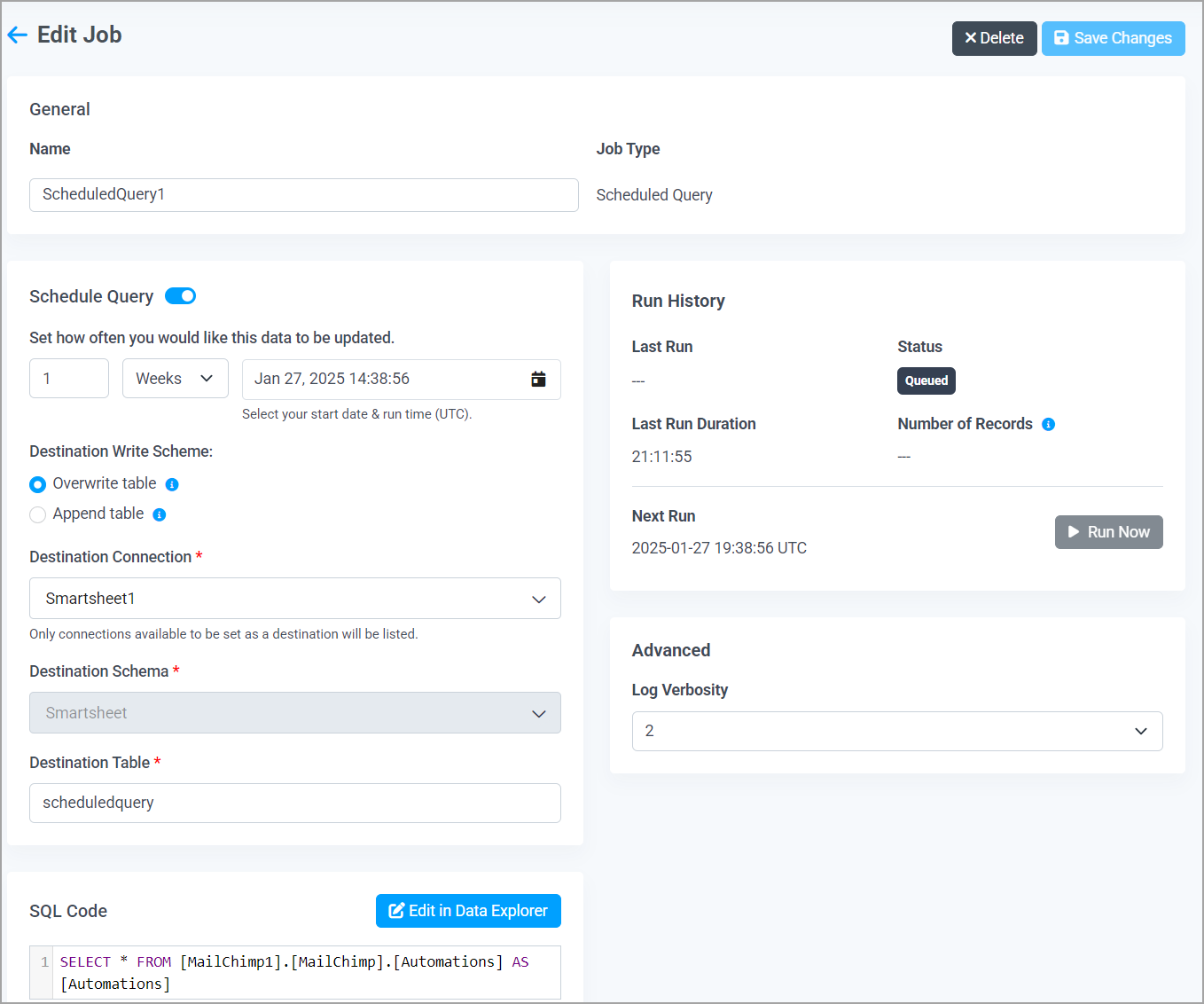
- Change the query schedule, or change the destination write scheme.
- Change the destination connection and table.
- View the run history and status, making sure the previous job run was successful.
- Change the log verbosity.
- Run a single job manually. You can run multiple jobs in the main Jobs page.
- Disable the scheduled query temporarily by turning the toggle next to Schedule Query off.
- Edit the SQL code of the scheduled query.
- Delete the scheduled query.