

Prerequisites
Before you attempt to connect to Sage Intacct, make sure to add the Sender ID ‘CData’ into your list of authorized Sender IDs for Web Services authorizations. To add the Sender ID, follow these steps:1
Log in to Sage Intacct as an administrator.
2
Navigate to Company.
3
Under Setup select Company.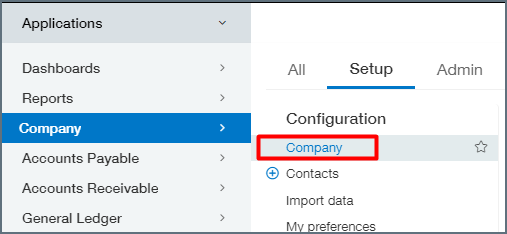
4
Go to the Security section and add the CData Sender ID.
5
If this does not work, utilize our Sender ID and Sender Password to select
another user with the right permissions from your Web Services
authorizations list.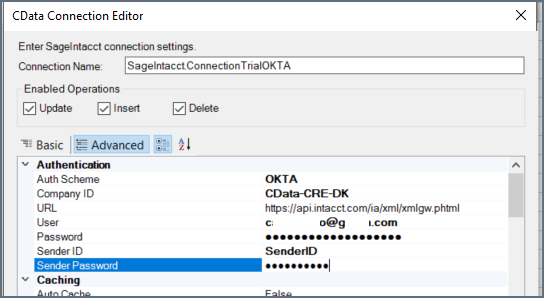
support@cdata.com for additional assistance.
Setup Guide
Follow these steps to connect Sage Intacct to your Connect AI account:1
Open the Connections page of the Connect AI dashboard.
2
Click + Add Connection in the upper-right corner.
3
Type Sage Intacct into the search field, then click the data source name.
4
On the Basic Settings tab of the new connection, enter a connection name
or keep the default name.
5
Enter your Company Id into the Company ID field. You can find this Id in
Sage Intacct under Company > Company info.
6
Select the Authentication method, then proceed to the relevant section and
follow those instructions.
Authentication Methods
- BasicReadOnly
- Basic
- OKTA
1
First make sure that you have not specified either a “SenderID” or
“SenderPassword” in Sage Intacct.
2
In the Sage Intacct Web Services dashboard, navigate to Company > Company
Info > Security.
3
Add CData to the Web Services authorizations by navigating to Security >
Web Services Authorizations/ Edit. Remember that this is case sensitive.
4
On the Connect AI connections page, add the embedded User and
Password provided by Sage Intacct.
5
At the top of the Connect AI Connection page, click Save & Test.
- If the connection test succeeds, a Connection successfully saved message appears, indicating that your connection has been created. The Status on the Edit Connection page also changes to Authenticated. View the data model of your successful connection in the right pane of the Edit Connection page, in the Data Model tab.
- If the connection test fails, ensure that you entered your login information correctly with no stray spaces or other characters. Connect AI displays error messages under the required fields with missing data. Some data sources require that you sign in directly to the source website. If you did not, an error message appears under the Sign in button. Correct the errors and try again.
- Unsuccessful connections are saved as drafts and have a Status of Not Authenticated. You can return to the connection and authenticate it later.