Note: Before you can configure and use JDBC with Connect AI, you must first connect a data source to your Connect AI account. See Sources for more information.
Install the Driver
Download and run the JDBC setup file for your operating system.Create a JDBC Data Source
Follow these steps to create a JDBC data source to connect to Connect AI from your Java application:1
Add the driver JAR file to the classpath. The JAR file is located in the
lib subfolder of the JDBC driver for Connect AI installation directory.Note: The .lic file must be located in the same folder as the JAR file.
2
Some applications automatically populate the driver class. For applications that do not automatically populate it, you must enter it manually. For example:
3
Provide the JDBC URL. For example:orThe second format above can be used to ensure you are using the CData driver whenever there is a conflict in your application between drivers using the same URL format. The URL must start with either
jdbc:connect: or jdbc:cdata:connect:, and it must only include the AuthScheme setting as OAuth.Connect to Connect AI
Embedded Cloud users can connect the JDBC client to Embedded Cloud using OAuthJWT authentication. Set the Auth Scheme in your JDBC connection as OAuthJWT.Connect to a Workspace
To connect the JDBC client to a specific workspace, you specify the workspace name in the Advanced tab of the JDBC driver for Connect AI.
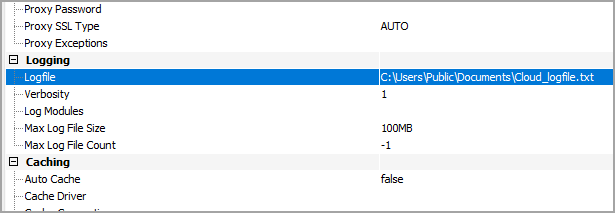
Designate a Log File
You can designate a log file for the JDBC driver in the Advanced tab of Connection Properties. You can also change the verbosity of the log file for greater detail.